Expert Tech Insights: Unleashing the Power of Windows, Microsoft 365, and Microsoft Azure




-

5 Ways to Get Things Done More Efficiently in Microsoft 365
Last Update: Apr 23, 2024
- Apr 22, 2024
-

-
Microsoft’s NEW Loop Feature to Challenge Notion
Podcast- Apr 19, 2024
-
-

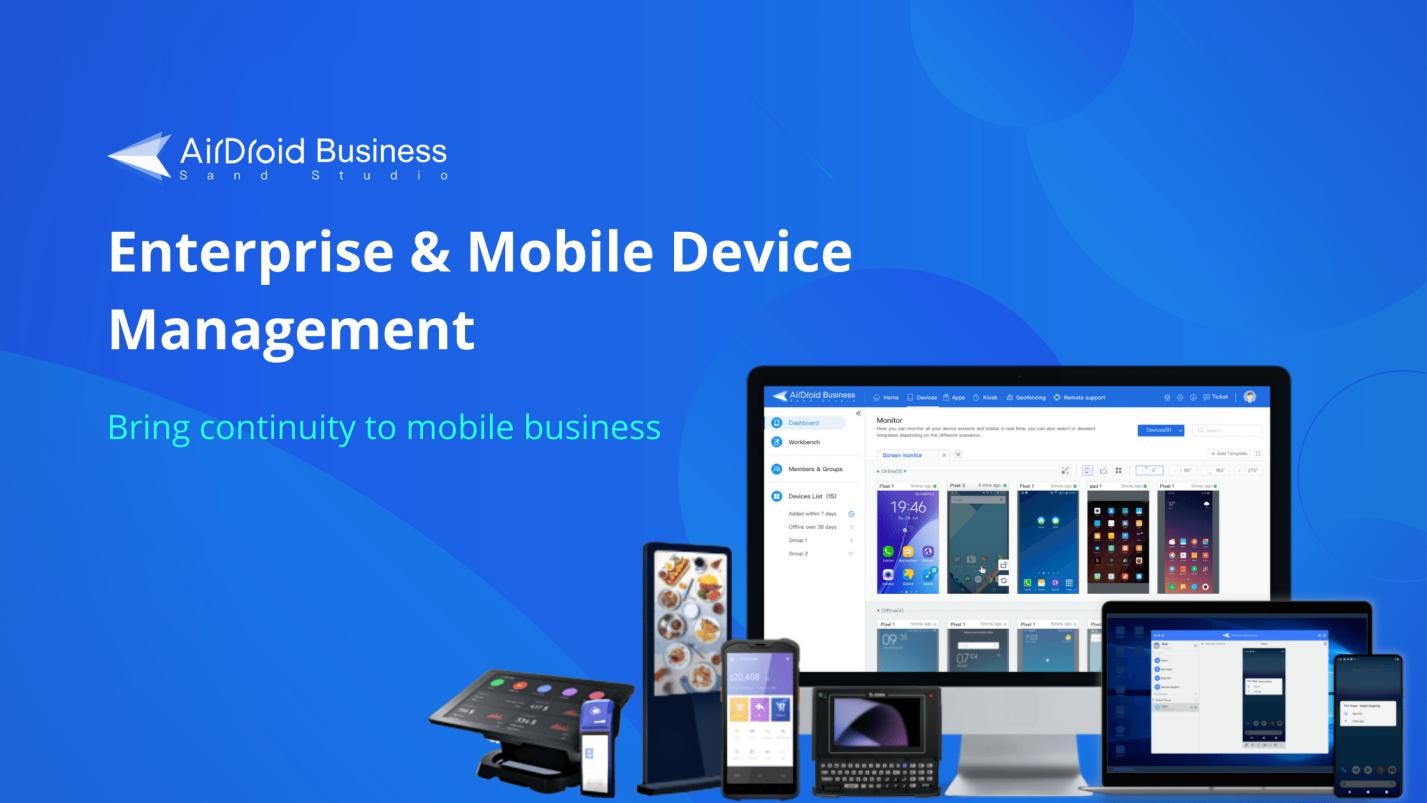
Securing Enterprise Devices: Embracing Zero Trust Security
Last Update: Apr 17, 2024
- Sep 05, 2023
-



-

Microsoft Entra ID App Registration and Enterprise App Security Explained
Last Update: Apr 17, 2024
- Oct 19, 2023
-
-
5 Reasons to Consolidate Active Directory Domains and Forests
Last Update: Apr 16, 2024
- Feb 14, 2024
-




-

5 Ways to Get Things Done More Efficiently in Microsoft 365
It can seem at times we all have an overwhelming amount of things to do and information to deal with. Solutions like Microsoft 365 are supposed to help us collaborate and be more productive. But unless you understand the tools and how to best create a process that works for you and your team, it…
Last Update: Apr 23, 2024
Apr 22, 2024 -
5 Tips for Modern Task Management
If you can control your workload, you can sleep better, feel less overwhelmed, and actually enjoy the calm moments. Matthew McDermott shares 5 tips for better managing your workload and time.
Last Update: Apr 22, 2024
Jun 9, 2017 Matthew McDermott
-
Securing Enterprise Devices: Embracing Zero Trust Security
The excessive use of digital devices in enterprises and their exposure to various networks have increased the probability of cyber-attacks. Enterprise-owned devices contain confidential data that hackers can easily access if devices are not controlled efficiently, and that can cause damage to the values and reputation of the organizations. Thus, data security is now of…
Last Update: Apr 17, 2024
Sep 5, 2023 -
Regulatory Compliance with Microsoft 365
Making sure your business is in compliance with the various regulatory policies that you need to work with can be challenging. Many companies use Microsoft 365 to work with unstructured personal data that are covered by laws that require your organization to follow different compliance procedures. This includes responding to regulatory requirements, assessing compliance risks,…
Last Update: Apr 17, 2024
Jan 25, 2022 -
Real World SmartDeploy with Barry Weiss of the Gordon and Betty Moore Foundation
After struggling for years with tools like Microsoft Deployment Toolkit (MDT), Barry Weiss heard about a simpler and less expensive solution called SmartDeploy at a Microsoft conference.
Last Update: Apr 17, 2024
Jan 20, 2022 -
Ransomware Risks for Microsoft 365
With the rise in remote workers the risk of ransomware is higher than it has ever been before. By now most people know that ransomware is a type of malware extortion scheme that typically encrypts files and folders preventing access to critical data or sometimes it can also be used to steal sensitive data. After…
Last Update: Apr 17, 2024
Oct 26, 2021
 Matthew McDermott




Thank you to our petri.com site sponsors
Our sponsor help us keep our knowledge base free.


Petri Experts Spotlight
-
-
Laurent Giret Editorial Manager

- First Ring Daily: Did Copilot Do That? Apr 19, 2024
- First Ring Daily: Intel Does AI Apr 12, 2024
-
Russell Smith Editorial Director
-
Michael Reinders Petri Contributor
-
-
Michael Otey Petri Contributor
- Install and Use SQL Server Report Builder Apr 10, 2024
- SQL Server Essentials: What Is a Relational Database? Mar 12, 2024
-
Stephen Rose Chief Technology Strategist
- UnplugIT Episode 2 – In The Loop Jun 13, 2023
- Unplugging What’s Next for Teams 2.0 May 30, 2023
-
Shane Young Petri Contributor
-
Sukesh Mudrakola Petri Contributor
-
-
-
Flo Fox Petri Contributor
-
Chester Avey Petri Contributor
-
Sander Berkouwer Petri Contributor
-
-
-
Sagar Petri Contributor
- How to Create a Dockerfile Step by Step Nov 14, 2023
- What is Amazon Kinesis Data Firehose? Jul 14, 2023
-
Bill Kindle Petri Contributor
-
Johan Arwidmark Petri Contributor
- Upgrade to Windows 11 – The Road Ahead Nov 28, 2023
-













Sponsored Articles List
-
Securing Enterprise Devices: Embracing Zero Trust Security
The excessive use of digital devices in enterprises and their exposure to various networks have increased the probability of cyber-attacks. Enterprise-owned devices contain confidential data that hackers can easily access if devices are not controlled efficiently, and that can cause damage to the values and reputation of the organizations. Thus, data security is now of…
Last Update: Apr 17, 2024
Sep 5, 2023 -
Compliance
Microsoft 365
SharePoint Online
Regulatory Compliance with Microsoft 365
Making sure your business is in compliance with the various regulatory policies that you need to work with can be challenging. Many companies use Microsoft 365 to work with unstructured personal data that are covered by laws that require your organization to follow different compliance procedures. This includes responding to regulatory requirements, assessing compliance risks,…
Last Update: Apr 17, 2024
Jan 25, 2022 -
Endpoint Protection
Real World SmartDeploy with Barry Weiss of the Gordon and Betty Moore Foundation
After struggling for years with tools like Microsoft Deployment Toolkit (MDT), Barry Weiss heard about a simpler and less expensive solution called SmartDeploy at a Microsoft conference.
Last Update: Apr 17, 2024
Jan 20, 2022 -
Microsoft 365
Ransomware
Ransomware Risks for Microsoft 365
With the rise in remote workers the risk of ransomware is higher than it has ever been before. By now most people know that ransomware is a type of malware extortion scheme that typically encrypts files and folders preventing access to critical data or sometimes it can also be used to steal sensitive data. After…
Last Update: Apr 17, 2024
Oct 26, 2021 -
Backup & Storage
Cloud Computing
Microsoft 365
Microsoft Azure
Microsoft Teams
Protecting the Different Types of Microsoft 365 Data
Microsoft 365 is an indispensable collection of tools for businesses. While Microsoft is responsible for the availability and ongoing functionality of all the Microsoft 365 apps, the responsibility for protecting Microsoft 365 data is the customer’s obligation. Let’s take a closer look at the different types of Microsoft 365 data and the kind of protection…
Last Update: Apr 17, 2024
Nov 29, 2021
PODCASTS
View all Podcasts-
podcast
2 NEW A.I. Features Unleashed in Microsoft Teams and Edge
With the latest updates to Teams and the Edge browser, Microsoft has included two new AI-powered features that are designed to help you get work done faster and stay focused on what’s most important. This Week in IT, I look at how these new features work and how they are paving the way for more…
Listen now LISTEN & SUBSCRIBE ON:
-
podcast
Microsoft’s NEW Loop Feature to Challenge Notion
Microsoft Loop is the next best thing since… well productivity and note-taking app ‘Notion’. This Week in IT, I look at how Microsoft is planning to challenge Notion and how current features are building towards a big update that customers have requested from Microsoft. Links and resources Transcript Microsoft Loop is the next best thing…
Listen now LISTEN & SUBSCRIBE ON:


Tech Smarter. Join Petri Insider.
Create a free account today to participate in forum conversations, comment on posts and more.

“Because knowing PowerShell is harder than crochet with your grandmother and damn critical to your career.”
Jeff HicksPowerShell Guru & Petri Contributor
GET IT Learning Center
-

Threat Detection & the Role of Operational Resilience
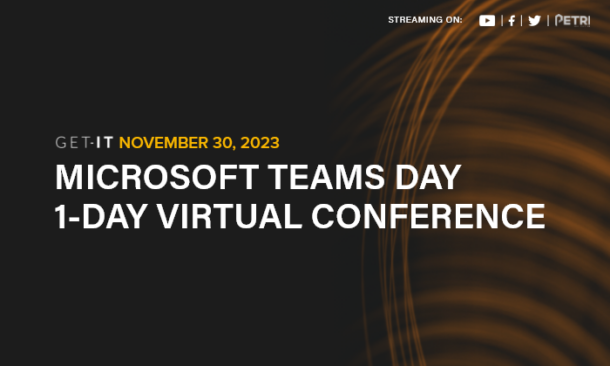
Join the GET-IT virtual conference and learn from industry experts on how to deploy security solutions and achieve operational resilience to cyberthreats. Prevent disruption to your core business operations and services using tools from Microsoft. Be prepared and register now. Don’t let your business become another statistic!


OUR SPONSORS
-

Cayosoft
Learn more about CayosoftCayosoft delivers the only unified solution enabling organizations to securely manage, continuously monitor for threats or suspect changes, and instantly recover their Microsoft platforms.
-

ManageEngine
Learn more about ManageEngineMonitor, manage, and secure your IT infrastructure with enterprise-grade solutions built from the ground up.