



Overview
When needing to manipulate a virtual machine – either kill it if it’s unresponsive, or do other management tasks such as working with virtual disks or snapshots and even fixing specific issues with NTFS file permissions – it may be useful to know the virtual machine ID or GUID. In this brief article, we’ll show you where to find the process ID and GUID.
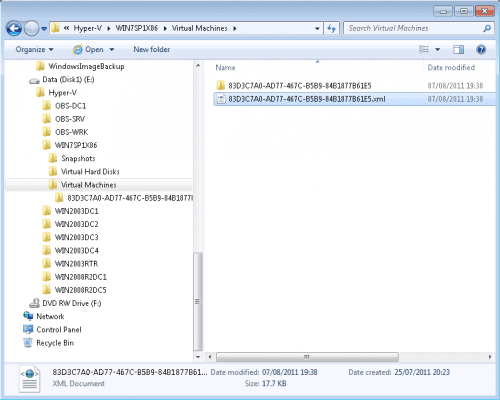
Find Virtual Machine GUID in XML Config File
If you look at the folder where the VM is located, you’ll find an .XML file that contains the configuration information for the VM. This file name uses a long GUID string, which in fact is identical to the VM’s GUID.
Other Methods to Obtain ID and GUID
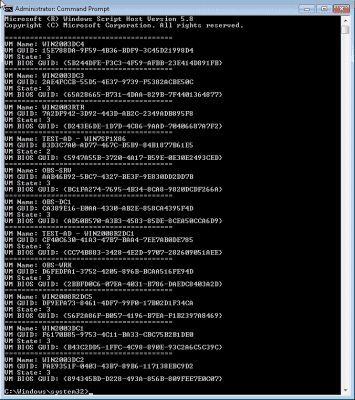
This is a good script written by Michael Michael from Microsoft. It will give you a list of all VMs in a hyper-v system as well as their respective BIOS GUIDs.
How to get the BIOS GUID from a Hyper-V VM – Virtual Machine Management – Site Home – TechNet Blogs
http://blogs.technet.com/b/m2/archive/2008/07/04/how-to-get-the-bios-guid-from-a-hyper-v-vm.aspx?ppud=4&wa=wsignin1.0
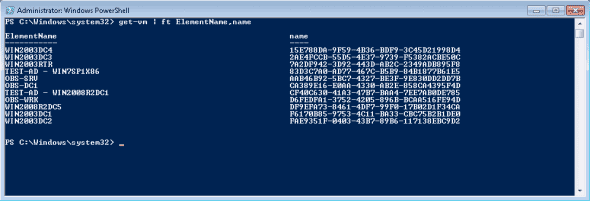
Next, a good resource to know, the PowerShell management Library for Hyper-V, a project to provide a PowerShell management library for Hyper-V. It does pretty much what it says, with 80 functions in the library.
PowerShell Management Library for Hyper-V
http://pshyperv.codeplex.com
After importing the management library, run a command such as this one:
get-vm | ft ElementName,name
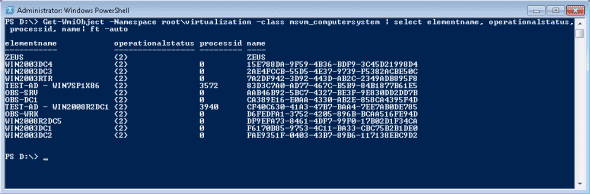
Another easy to use method is by querying the WMI repository.
Copy the following command and enter it in a PowerShell window with elevated credentials:
Get-WmiObject -Namespace root\virtualization -class msvm_computersystem | select elementname, operationalstatus, processid, name| ft -auto
For example:
After finding either the Process ID or the GUID, here is how you can kill a hung VM without affecting the other VMs on the host.
Summary
Knowing a VM’s ID or GUID can be useful whenever you need kill a hung VM or do other management tasks to a specific VM, especially if there are multiple VM’s running on one machine. I hope this brief article has shown you some useful ways of obtaining a VM’s ID and GUID.