


Hyper-V in SCVMM 2008 “Needs Attention”
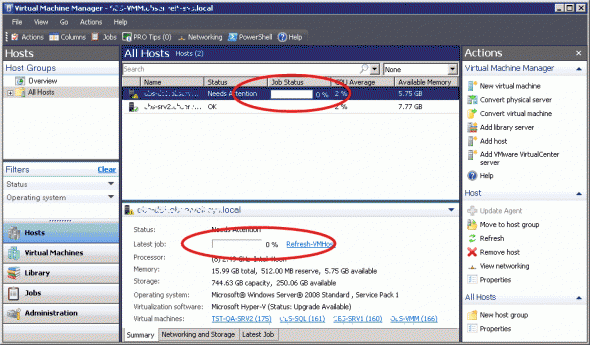
System Center Virtual Machine Manager (or SCVMM or even VMM for short) 2008 is Microsoft’s management tool for Hyper-V and Virtual Server 2005, with added ability to even manage VMware ESX servers. After installing VMM 2008 and connecting it to Hyper-V hosts, if these Hyper-V hosts do not have two updates installed on them, SCVMM 2008 server will report your hosts as “Needs Attention”, and the sub-status for Virtualization Service Version will show as “Upgrade Available”.
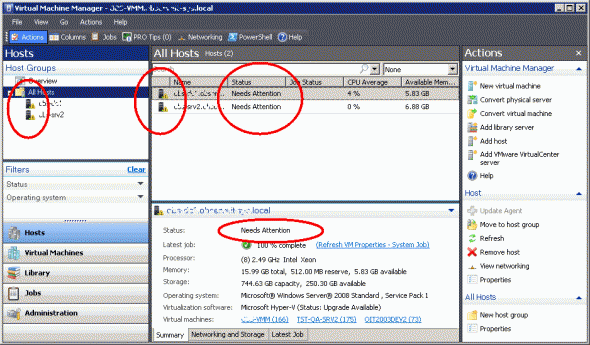
The nasty thing about this is that these updates are not listed in the Windows Update list of available updates, and you must manually download and install them.
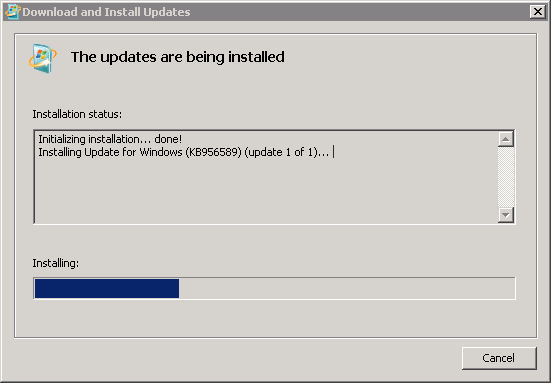
Download #1: Hyper-V Update (KB956589)
http://support.microsoft.com/?kbid=956589
Install this update to resolve potential issues when you manage Hyper-V with System Center Virtual Machine Manager (SCVMM).
Download #2: BITS Update (KB956774)
http://support.microsoft.com/?kbid=956774
Install this update to resolve the scenario where a Background Intelligent Transfer Service (BITS) client cannot handle files that have paths that contain the volume GUID in Windows Server 2008. After you install this item, you may have to restart your computer.
Note: This patch is not available for download like the previous one. You must request it through the provided link, and you’ll receive a confirmation e-mail containing the download link and a password for the zipped file.
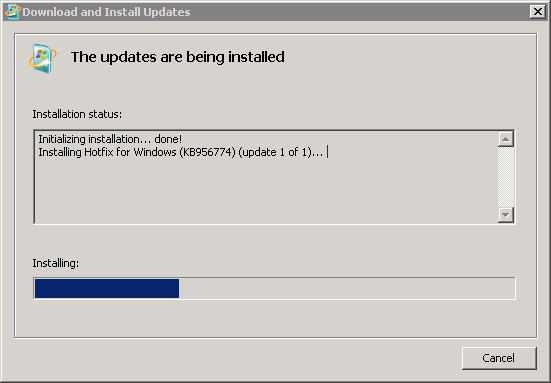
Important note: Both hotfixes require a reboot, so be sure to properly plan for installing them with minimum interruption to running virtual machines.
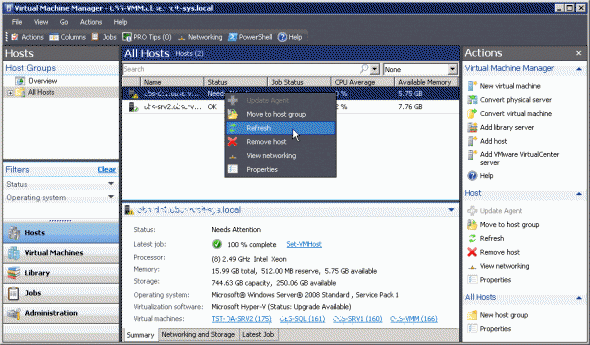
After installing these updates, you must refresh the status of the Hyper-V hosts. Once finished, the status of the Hyper-V hosts are changed to normal.
Related Links:
Download and install the following updates on all of your Hyper-V hosts:
Hyper-V Update for Windows Server 2008 x64 Edition (KB 956589) at http://go.microsoft.com/fwlink/?LinkID=113199
Background Intelligent Transfer Service (BITS) update (KB 956774) at http://go.microsoft.com/fwlink/?LinkID=128540