



Quickly Access your Folders in Vista
When using a computer for so many hours as I do, you need to work fast. You need to find shortcuts to better manage your computer, and work faster with daily tasks. One of the most handy tricks in Windows Vista (and previous operating systems) is the My Computer shortcut.
When using Microsoft Office programs, web browsers, or practically any other application that needs to gain access you your saved files, you frequently find yourself looking for your stuff. You look for your documents, for MP3 audio files, for Power Point presentations, for text files and more.
Windows Vista introduced the built-in search folder. While search did exist in previous operating systems (and you could also upgrade it by using tools such as Microsoft Windows Desktop Search), Vista has moved a step forward in that area.
However, even Vista’s quick search capability requires you to know the name of the file you want to open, or at least part of it. If you don’t, what’ you’ll end up doing in most cases is to open Windows Explorer for navigating, copying, moving, opening and other file operations.
When your desktop is hidden behind other opened windows, finding the ”My Computer” icon can be time consuming, and you’ll probably need to “dig” deep in order to find it. Needless to say, this is made even more time consuming since someone in Microsoft had the nasty idea that users do not need to have the “My Computer” icon on their desktop… BTW, you can get the “My Computer” icon back on your desktop! Read my Get Your Desktop Icons Back in Vista article.
Note: One of the most useful shortcuts on my keyboard is the Windows Logo key + E, which automatically fires up Windows Explorer.
So here comes the tip. There is a quick alternative for navigating inside your file and folder structure by using a cool Windows Vista toolbar shortcut.
In order to get your “My Computer” toolbar on the Vista task bar follow these steps:
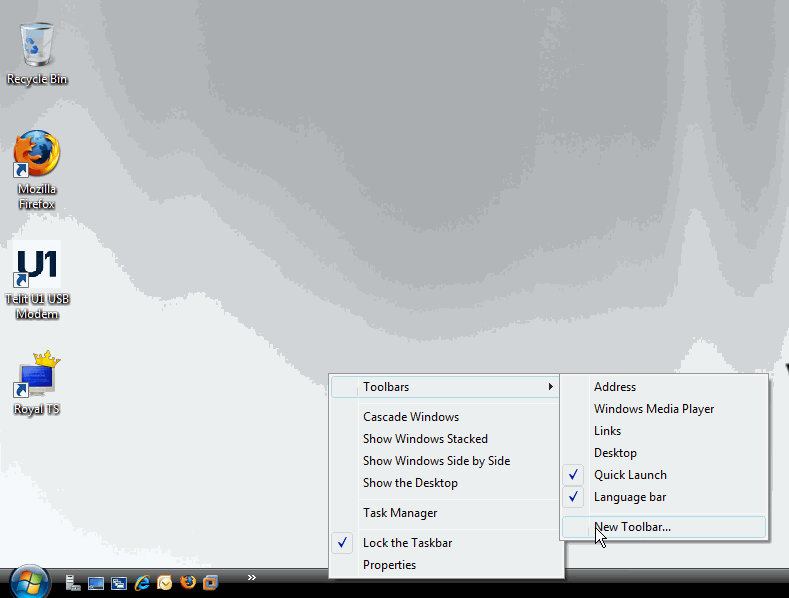
1. Right-click an empty spot on the task bar and select “Toolbars” > “New Toolbar”.
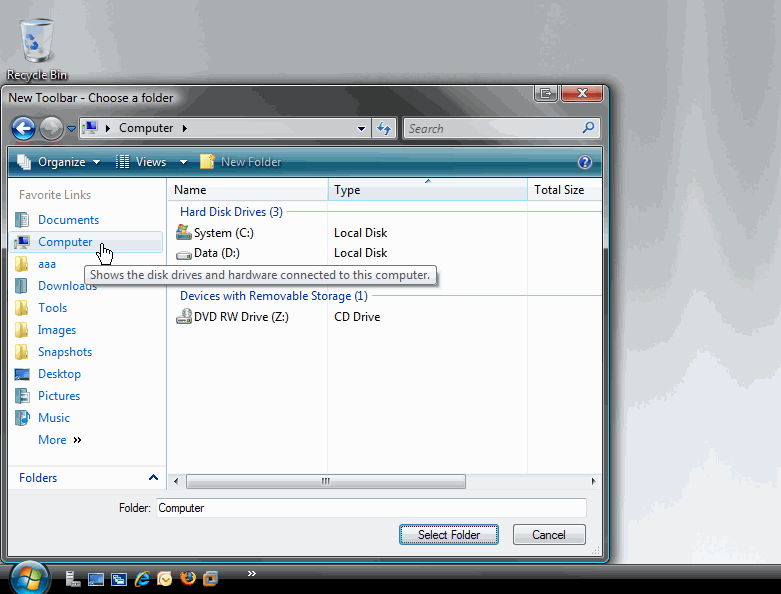
2. Click on the “Computer” icon and then on the “Select Folder” button.
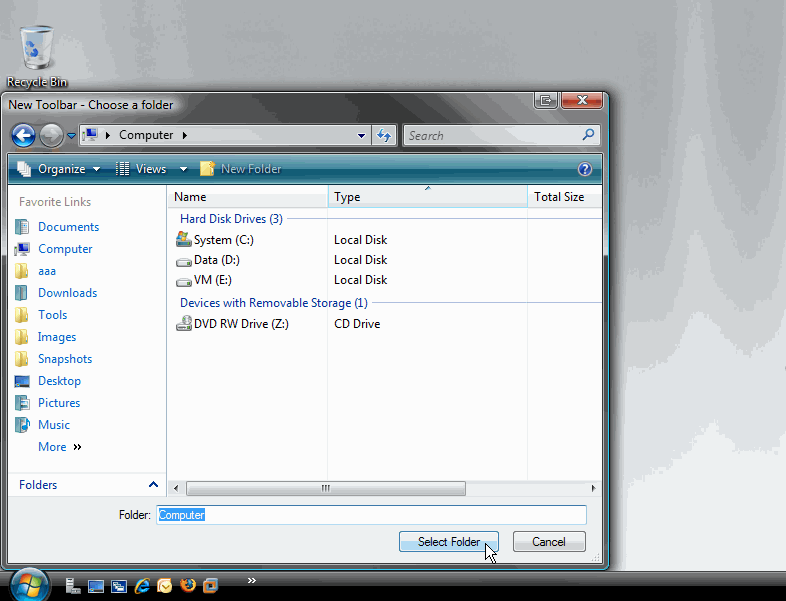
Bingo.
Now, all you need to do is to click on the new toolbar, and your entire computer – files and folders – will be easily accessible.
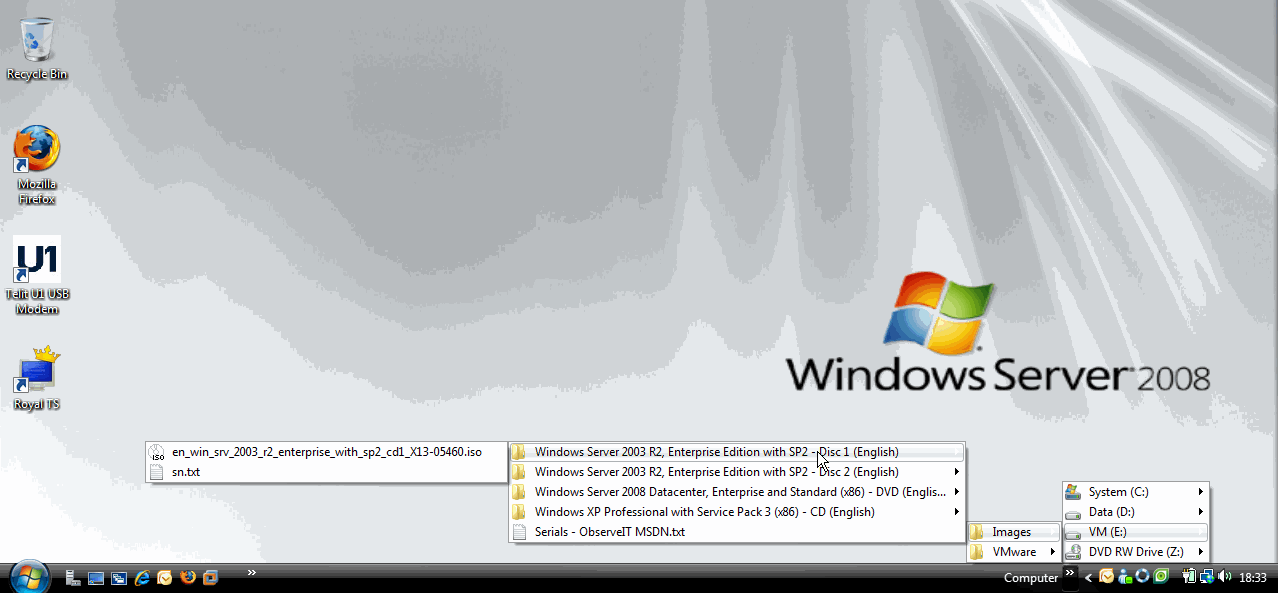
Note: You can of course right-click any file or folder and choose to perform any action on it – copy, paste, cut, delete and so on.
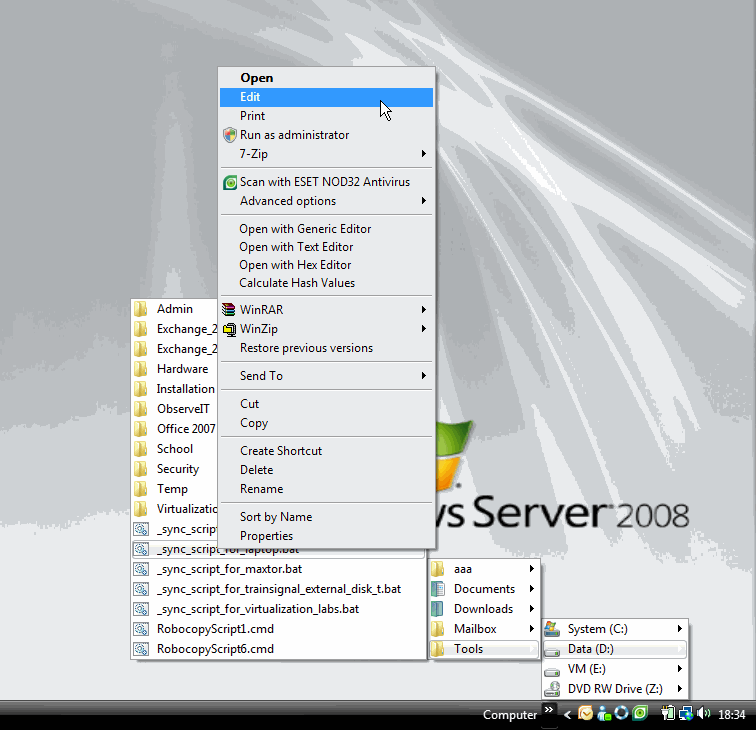
Very nice, very fast, and very cool!