


In my previous Windows 7 articles on installing Virtual PC and installing Windows XPM, I walked you through the features of the new Windows Virtual PC software that is specially designed for Windows 7. If you’re not familiar with the terms yet, here’s a quick reminder: Windows Virtual PC provides the capability to run multiple Windows environments such as Windows XP Mode from your Windows 7 desktop.
Since the current version of Virtual PC for Windows 7 is beta, you might want to remove the default Virtual Windows XP machine when the RTM version is available.
To remove the default Virtual Windows XP machine that is installed when you first use it, follow these steps:
Note: You will lose all the data that was stored inside the default Virtual Windows XP machine, plus all integrated applications.
The default virtual machine used by Virtual PC is stored in the C:\Program Files\Virtual Windows XP folder. All the contents of this folder will be removed when you uninstall Virtual Windows XP.

Note: All screenshots and procedures are based on the RC version of Windows 7, and the beta version of Virtual PC.
1. Go to the Control Panel and select “Uninstall a Program”.
Note: This article is directly related to the default Windows XP virtual machine used by Windows XP Mode (or XPM). When you create additional virtual machines, you need to manually delete them, as they will not be visible inControl Panel > “Uninstall a Program”.
2. In the list that appears, scroll down till you find “Virtual Windows XP”.
3. Click on the “Uninstall” button.

4. You might be prompted to acknowledge the fact that you’re going to uninstall a program. Click Yes.
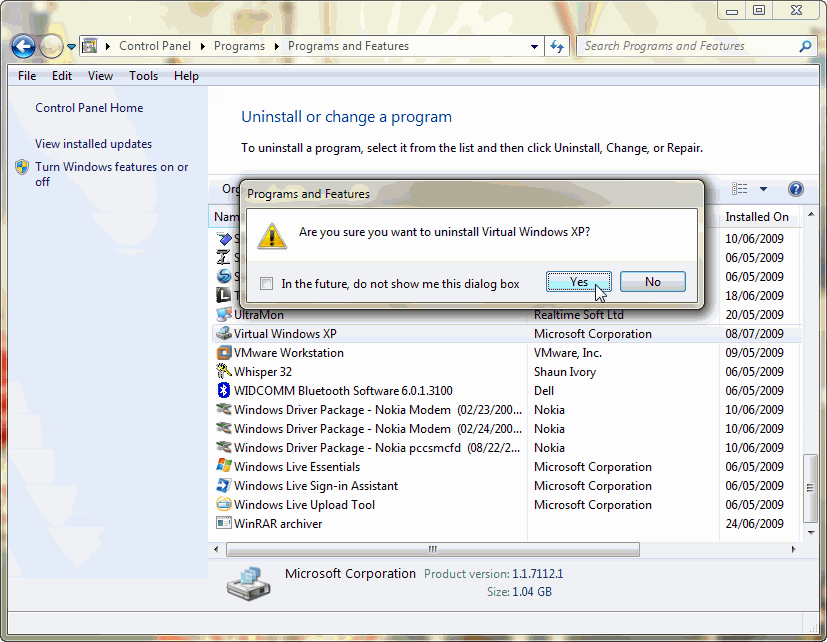
5. Next, you will be prompted to acknowledge the fact that you’re going to delete the virtual hard disk(s) of the virtual machine. Click Yes.
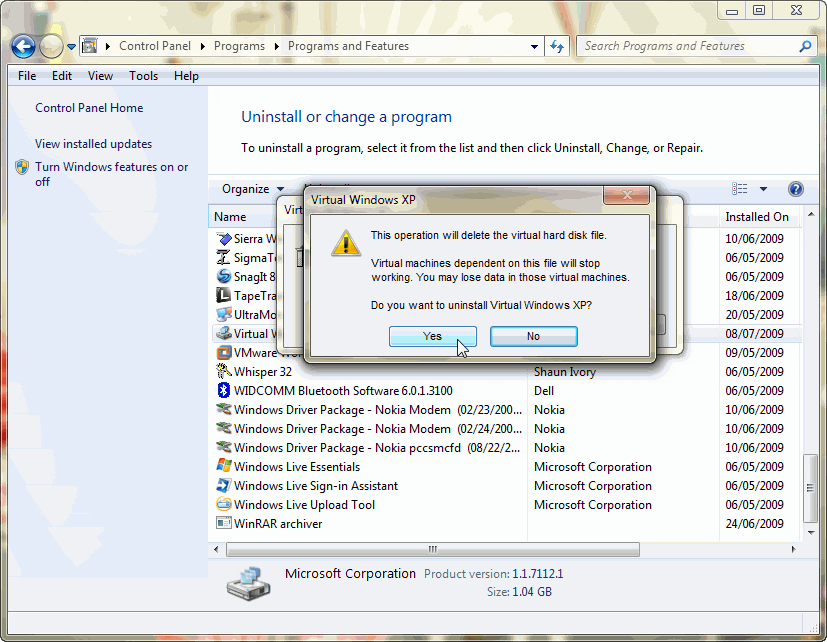
When the installed is done, the Virtual Windows XP machine will be removed from your Windows 7 machine. If you ever need to install it, simply re-download it from Microsoft’s website and reinstall it.